Preprocessing
In the previous part of this book about SNMP polling we started using some preprocessing. We used it to extract data from our bulk collected SNMP items as well as manipulate how the data is stored in our Zabbix database.
Without properly understanding this underlying technical functionality however, we do not have the correct foundation to understand what preprocessing is. As such, let's have a more detailed look into what preprocessing is exactly, how we can use it and why it is such an important part of our Zabbix environment.
Preprocessing functionality
The preprocessing functionality in our Zabbix environment is used to transform received data from our hosts on items. It allows us to process data before it is stored into our Zabbix database, it's right in the name "preprocessing". Whenever we configure an item in our Zabbix environment, it's possible for us to apply the preprocessing logic and alter the incoming data.
We do this on the item configuration, under the preprocessing tab of the item we are editing.
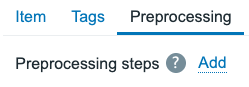
4.43 Preprocessing item tab
Here we can add our preprocessing steps by pressing the add button and selecting a step. However, before we dive deeper into how to create our steps let's have a look at exactly what preprocessing does within our Zabbix application.
For our Zabbix monitoring to function as it does, we have to have a collector process running. A process like the Pollers, SNMP Pollers, Trappers, and all of the other ones. These processes are in charge of connecting over the network to collect a value using a specific protocol like the Zabbix agent or SNMP. In case of the Trappers, the process is waiting around to receive data instead. They have one thing in common however and that is that at one point data will be received on that process.
When the data is received, Zabbix server or -proxy will always send data through the preprocessor. This happens before the data is stored in the Zabbix database and that is why it is called preprocessing. We process the data before we store it in the database.
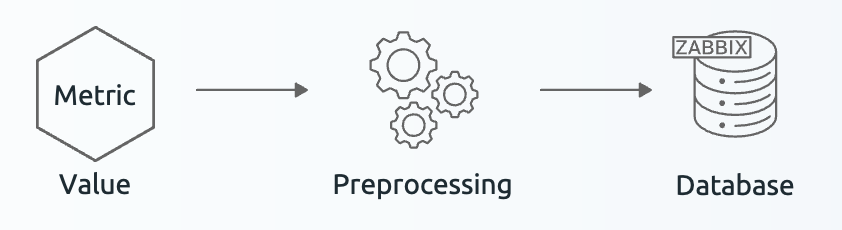 4.44 Preprocessing basic functionality
When data is received, Zabbix will internally kick of a few steps. First, it will add the received metric on your item to the preprocessing queue. From the processing queue, the processing manager will find a free preprocessing worker process and submit the preprocessing task on it. One preprocessing worker can handle the preprocessing steps for a single item at the time. Once the preprocessing worker is done, the processed item moves on to the next step in our Zabbix server or -proxy processes and the worker is free to handle the next item preprocessing.
Various types of preprocessing
There are several types of preprocessing steps available, all of which will process and output our data in a different way. This is the current list of preprocessing steps available:
Text: Transform text data using the following methods: - Regular expression is a simple way (once you understand regex) to extract data. - Replace is used to simply replace one value with another, especially useful to replace string with numeric. - Trim is used to trim characters from both the left and right side at the same time. - Right trim is used to trim characters from right side. - Left trim is used to trim characters from left side.
Structured data: Parse and extract data from structured formats like XML, JSON, and CSV using the following methods: - XML XPath is used to extract specific data from XML using XPath expressions. - JSONPath is used to extract specific data from JSON using JSONPath expressions. - CSV to JSON is used to convert collected CSV data to JSON. - XML to JSON is used to convert collected XML data to JSON.
SNMP: Process SNMP data using the following methods: - SNMP walk value is used to extract a specific SNMP OID from a larger SNMP walk. Also used to format UTF8 or MAC as HEX, as well as BITS as integer. - SNMP walk to JSON is used to convert an SNMP walk to JSON format (ready for low level discovery). - SNMP get value is used to format an SNMP get value in UTF8 or MAC format as HEX, as well as BITS as integer.
Arithmetic: Perform arithmetic operations on numeric data using the following methods: - Custom multiplier is a simple mathematical multiplier, which can also be used to divide.
Change: Calculate the change between current (last) and previous values using the following methods: - Simple change is a simple calculation to get the difference between the last and previous value. - Change per second is a calculation to get the difference between the last and previous value based on the number of seconds that have passed between them.
Numeral systems: Convert values in different numeral systems to decimal using the following methods: - Boolean to decimal is used to convert the aforementioned value. - Octal to decimal is used to convert the aforementioned value. - HExadecimal to decimal is used to convert the aforementioned value.
Custom scripts: Process data using custom scripts with the following method: - Javascript is an extensive preprocessor, where we can use the built-in Javascript Duktape engine to apply complex scripts for processing.
Validation: Validate data using the following methods: - In range is used to validate if the value falls within a defined range. - Matches regular expression is used to validate if the value matches the regular expression. - Does not match regular expression is used to validate if the value does not match the regular expression. - Check for error in JSON is used to validate if there are errors in the received JSON. - Check for error in XML is used to validate if there are errors in the received XML. - Check for error using regular expression is used to validate if there are errors using an regular expression. - Check for not supported value is used to validate if no value could be received.
Throttling: Throttle data to reduce storage using the following methods: - Discard unchanged is used to discard any duplicate values. - Discard unchanged with heartbeat is used to discard any duplicate values, but still save it if the heartbeat has passed.
Prometheus: Parse and extract data from Prometheus metrics using the following methods: - Prometheus pattern is used to extract values from prometheus data. - Prometheus to JSON is used to convert prometheus data to JSON data (ready for low level discovery).
Detailed examples of most important preprocessing
When working with Zabbix, you will find that depending on your environment, some preprocessing steps are used more than others. Some of the most used ones are important to properly understand their functioning.
Regular expression
Regular expressions are a whole subject on its own, there are many books on the topic on its own. We won't going over the details here, for that we recommend going to https://regex101.com. On this website you can read extensive documentation about regular expressions, as well as test your existing ones.
Let's start with a basic example, where we have an item that received the value:
The error is value: 0. Let's say we want to get numeric value from the string,
we could configure our preprocessing like this.
Example regular expression
- Regular expression:
The error is value:\s(\d+) - Output format:
\1
 4.45 Preprocessing regular expression
This would then result in the value 0, which we can store as a
Numeric (unsigned) item type of information. The basic functionality of the
regular expression preprocessing step as you can see is to extract values from
larger data.
JSONPath and additional steps
Within Zabbix monitoring, JSON data structures are used quite a lot. We can find it in Low Level Discovery, export files, and it is often the data format sent back by API's. As such, being able to process JSON datasets is important and that is where JSONPath comes in. Let's say we have a basic JSON dataset we collected from an API.
Now with JSONpath, we could extract these values. Let's say we want to get the
enabled value and store it as a Numeric (unsigned) value. We could do the
following.
Example JSONPath
- JSONPath:
$.enabled - Replace:
falsewith0 - Replace:
truewith1
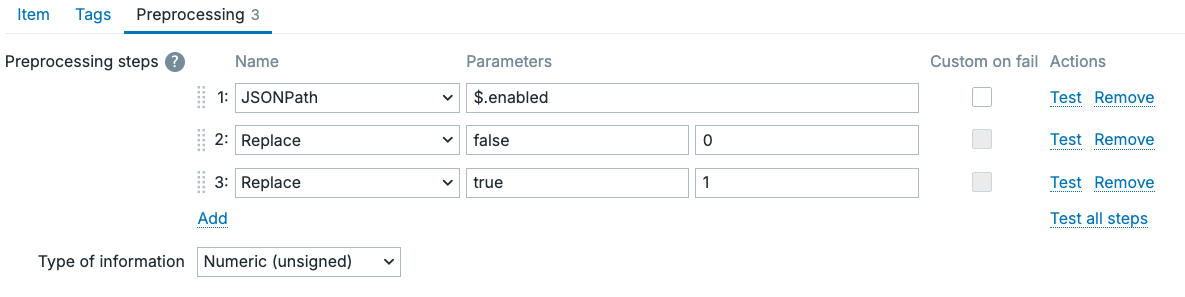 4.46 Preprocessing JSONPath
This will extract the value true. However, as a bonus we said we would also like
to store this extracted value as a Numeric (unsigned) value. To do this, we
used an additional 2 preprocessing steps of type Replace after the JSONPath
step, replacing false with 0 and true with 1. If we press the
Test all steps button, we can see the result happen live.
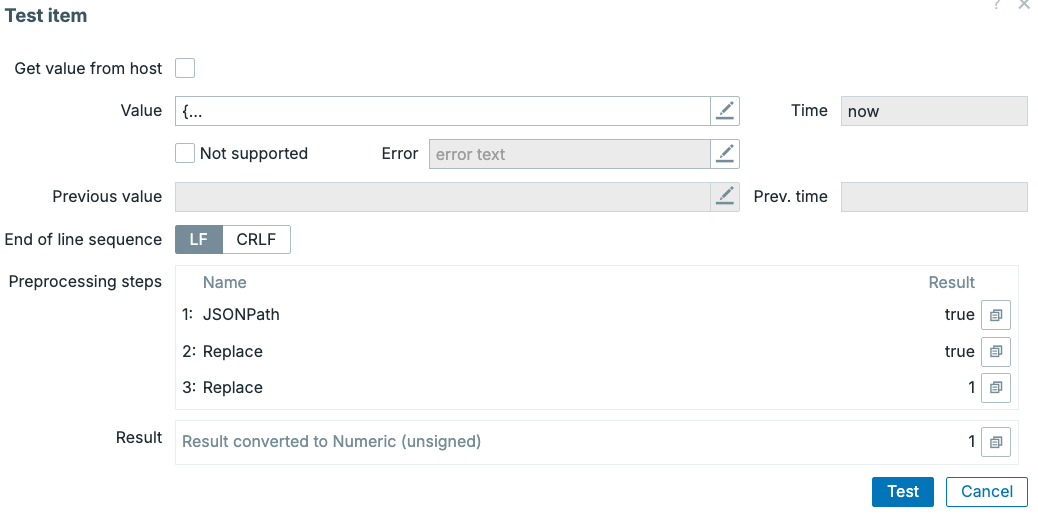 4.47 Preprocessing JSONPath test
It's important to know that we can add an unlimited amount of preprocessing
steps, but that Zabbix will always execute all of them in the order in which they
are defined.
- First, we extract the value from JSON.
- Second, we try to replace false with 0 which didn't do anything as there
was no match.
- Third, we replace true with 1 which worked.
Now all we have to do is apply a value mapping onto the item to translate true
and false back into human readable format.
Conversion to numeric values
You might be asking, why do we want to convert true and false into 1 and 0?
This has a few benefits, but the main one is that we can now store this value
as a Numeric (unsigned) value. This means we can use it in numerical trigger
functions like min(), max(), count(), sum(), etc. We can also use it
in graphs and other visualisations. Which is not possible if we store it as
a string value.
Secondly, storing this value as a Numeric (unsigned) value means Zabbix can
also store it in its Trends table, which allows us to keep a longer (trend-)history of
this data. Again, this is not possible if we store it as a string value, as
only numeric values are stored in trends.
And lastly, it takes up less space in our database, especially if we have a
high update interval and a lot of data points. Storing true and false as
string values takes up more space than storing 1 and 0 as numeric values.
So generally, it's always a good idea to convert string values into numeric values whenever possible, as it allows us to use more of Zabbix's functionality and also saves us some space in our database.
SNMP walk value
TODO
SNMP walk to JSON
TODO
Custom multiplier
The customer multiplier is simple, but important. In Zabbix you might often find that you receive a value, that you would want to store slightly differently. Specifically, this preprocessing step is often used to convert numbers to their base value.
Your device might be giving you a value in MegaBytes (MB) for example, where in Zabbix you would generally like to store Bytes (B) instead.
Example custom multiplier
- Custom multiplier:
1048576(1,024 * 1,024)
 4.48 Preprocessing Custom Multiplier
This will now store the received MegaByte value as Bytes by multiplying the incoming
value by the custom multiplier. Now, we can set the item Units setting to B
and Zabbix will automatically convert the Bytes value stored to a human readable
Mega, Giga, Tera, etc. when displayed in graphs, latest data, etc.
Base values
Storing base values is always preferred in Zabbix, so we can do the conversion
with Units on the item later. This results in a more dynamic setup.
Simple Change and Change per second
We quickly mentioned the Simple Change before, which calculates the difference between Last and Previous value. Change per second goes a step further however by introducing a time based calculation to the formula.
A Simple Change calculation looks like this.
Example simple change
We can see the result here is a simple 5, using the formula \(last_1 - last_2\).
In Zabbix the last received value is often indicated by last #1 or \(last_1\) and the value
before it as last #2 or \(last_2\) as in the "second last value". Next, let's introduce the
time based calculation with Change per second, so we see something more difficult
using the formula \(\frac{last_1 - last_2}{t_1 - t_2}\)
Example change per second
We can see the calculation is the same in principle, for \(\Delta last\) we subtract \(last_1\) and \(last_2\). We also take the Unix timestamp \(t_1\) and \(t_2\) of when \(last_1\) and \(last_2\) were collected, subtracting those gives us \(\Delta t\), the time passed between the two values. Then the last step is to divide the values, giving us an estimate of how much values were received per second. Of course, the shorter our update interval is, the closer the estimate. But it gives us an accurate average over time.
This kind of calculation works with what we call Counters, values that always
increase on our monitoring targets. For example, network interfaces
"Bits received/sent"-values are often times counters. These work by calculating
how much data has passed over the interface in total, often since the last reboot.
Often times, a useless metric to us unless we convert it with Change per second
when it gives us a nice Bits/s. This allows us to monitor network traffic over
time, instead of just a total.
Javascript
With many APIs out there being used to make monitoring data available to us, responses are getting more complex. It might happen that you get a response that isn't perfect to store in Zabbix. One of our favourite examples are dates and times. Sometimes developers might decide to gives us back a string value with the dates, for example:
- Aug 21 1991
- Aug 24 1991
- May 8 1945
Using Javascript, we could convert these dates into a nice Unixtime stamp. Unixtime is something Zabbix understands as a Unit and can be used in trigger functions.
Example Javascript
// Expecting: "Feb 20 2040"
    var months = {
        Jan: 0, Feb: 1, Mar: 2, Apr: 3, May: 4, Jun: 5,
        Jul: 6, Aug: 7, Sep: 8, Oct: 9, Nov: 10, Dec: 11
    };

    if (typeof value !== 'string') {
        return value;
    }

    // Split on whitespace
    var parts = value.trim().split(/\s+/);
    if (parts.length !== 3) {
        return value; // or throw, depending on how strict you want to be
    }

    var monStr = parts[0];
    var day = parseInt(parts[1], 10);
    var year = parseInt(parts[2], 10);

    var month = months[monStr];
    if (month === undefined || isNaN(day) || isNaN(year)) {
        return value;
    }

    // Use UTC midnight of that date, convert ms → seconds
    var ts = Date.UTC(year, month, day) / 1000;

    return ts;
Keep in mind, Zabbix will already put this Javascript code in a function for
preprocessing as function (value) { }. When testing this code, we can see it
executed for us now, converting out weird date format into a nice Unixtime.
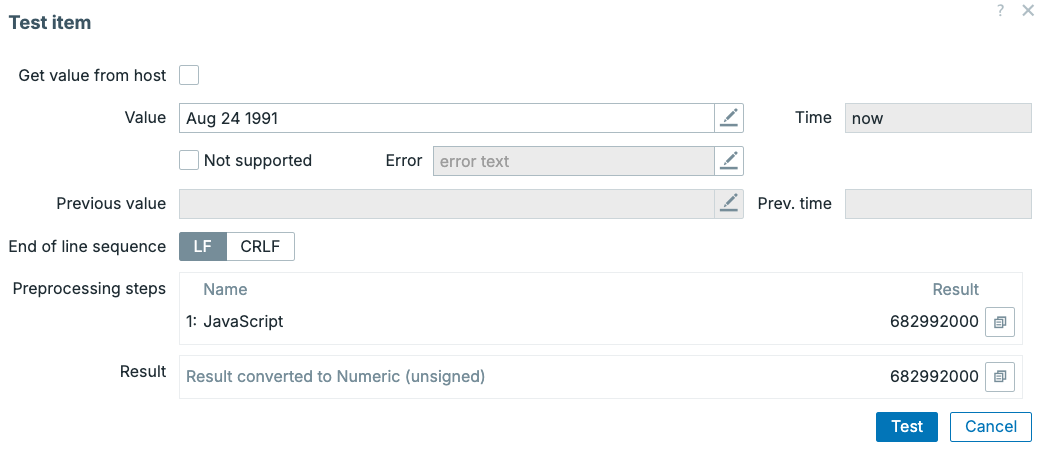 4.49 Preprocessing Javascript
Discard unchanged / Discard unchanged with heartbeat
Then, lastly, let's have a more detailed look at the Discard unchanged and Discard unchanged with heartbeat preprocessing steps. These are used to reduce the amount of data we store in our Zabbix database, by only storing values if they have changed. This is especially useful for items that receive a lot of data, but we only care about changes in the value. For example, a temperature sensor that only changes value when the temperature changes. If we would store every value, we would have a lot of redundant data in our database, taking up unnecessary space.
Zabbix provides us with two options to discard unchanged values. The first one is simply Discard unchanged, which will discard any value that is the same as the last stored value. When a value is discarded, it is not stored in the database, and it is not available for trigger expressions, graphs, etc. It is as if the value was never received at all.
Secondly, we have Discard unchanged with heartbeat, which will also discard unchanged values, but it will still store the value if a certain amount of time has passed since the last stored value. This is useful to ensure that we still have some data points in our database, even if the value doesn't change for a long time.
Let's say we set up our preprocessing step Discard unchanged with heartbeat
with a heartbeat value of 5m. We might see the following happen:
| Value | Timestamp | Stored value? |
|---|---|---|
| 0 | Now | No (unchanged) |
| 0 | 1m ago | Yes (changed value) |
| 1 | 2m ago | Yes (heartbeat) |
| 1 | 3m ago | No |
| 1 | 4m ago | No |
| 1 | 5m ago | No |
| 1 | 6m ago | No |
| 1 | 7m ago | No (unchanged) |
| 1 | 8m ago | Yes (changed value) |
| 0 | 9m ago | Yes (first value) |
We can see that we only store the value if it changes from 0 to 1 or from
1 to 0 in this case. However, at the 2m ago timestamp we can see an
exception. This specific value had passed the 5 minute heartbeat interval,
meaning we store this value even though it had not changed yet. This can be
used to make sure we still save a value from time to time, which can be useful
for data integrity or crafting your trigger expressions later on.
Conclusion
As we can see preprocessing can be used to turns raw received data into structured, meaningful monitoring data. Once you the various different types of preprocessing your Zabbix environment becomes cleaner and more powerful. It's useful to familiarise yourself with the various options in preprocessing, although we do not need to know all of them in detail. Different situations call for different types of preprocessing, so it's good to at least know of the existence of most of them. The Zabbix documentation also includes more details, as well as various examples.
Questions
- What is preprocessing in Zabbix and why is it important?
- How can you use regular expressions in preprocessing to extract data?
- Why is it often a good idea to convert string values into numeric values using preprocessing?
- What is the difference between the Simple Change and Change per second preprocessing steps, and when would you use each of them?
- Can you use the
nodata()function in trigger expressions with items that have the Discard unchanged preprocessing step enabled? Why or why not?